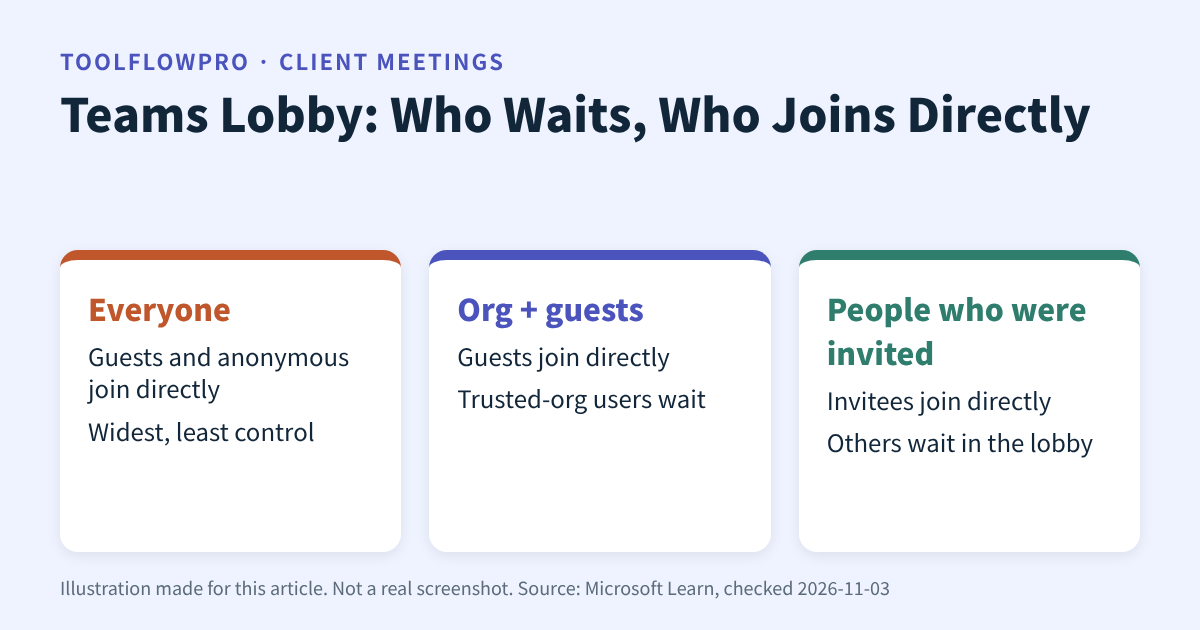
Short answer: for a client meeting, use the Teams lobby settings to set “Who can bypass the lobby” to “People who were invited”. Your client joins directly, and anyone who got the link by accident waits for you to let them in.
This guide is based on a Microsoft Learn page checked on 2026-11-03 (page footer date 2025-06-30). We did not test it in our own Teams tenant, so it is a document-based guide. Your admin policy can change what you see.
Which lobby setting fits your small team?
The lobby is a waiting room. People in the lobby cannot see the meeting until someone admits them. For client calls, you want your own team and the invited client to skip the wait, and everyone else to stop and ask.
Not a good fit: “Everyone” lets even anonymous people join directly. It is fast, but it gives you the least control.
Who joins directly, by setting
| Setting | Joins directly | Waits in the lobby |
|---|---|---|
| Everyone | All, including anonymous people | Nobody |
| People in my org, trusted orgs, and guests | Your org, trusted orgs, guests | Anonymous people |
| People in my org and guests | Your org and guests | Trusted-org users, anonymous people |
| People in my org | Your org only | Guests, trusted orgs, anonymous people |
| People who were invited | Invitees, including forwarded invites | Everyone else |
| Only organizers and co-organizers | Organizers and co-organizers | Everyone else |
Details that surprise small teams
By default, organizers and presenters can admit people from the lobby. Admins can limit this to organizers and co-organizers with PowerShell.
Dial-in callers and anonymous users wait until a verified participant joins. The “can start a meeting” setting is off by default, and Microsoft recommends leaving it off.
Even the right lobby setting will not help if the matching access is off. Guests need guest access. People in trusted organizations need external access. Anonymous people need anonymous meeting join. Policy changes can take up to 24 hours to apply.
Checklist before the client call
- Write down who must join without waiting: your team, the client, or both.
- Open the meeting and choose Meeting options.
- Set “Who can bypass the lobby” to “People who were invited”.
- Send the invite to the client directly. Do not rely on a forwarded link.
- Name one person on your team who will admit late joiners.
- Open the meeting options again and confirm the setting was saved.
Related reading
If the client needs files and not only the meeting, read the Notion guest access checklist. When the project ends, use the Slack offboarding checklist as a model for removing access.
Your next step
Open your next client meeting’s options today and set the lobby to “People who were invited”. It takes about two minutes.
Sources
- Microsoft Learn: Who can bypass the meeting lobby (checked 2026-11-03; page footer date 2025-06-30)
No affiliate link is used in this article. Settings can change, so check the Microsoft page before you decide.