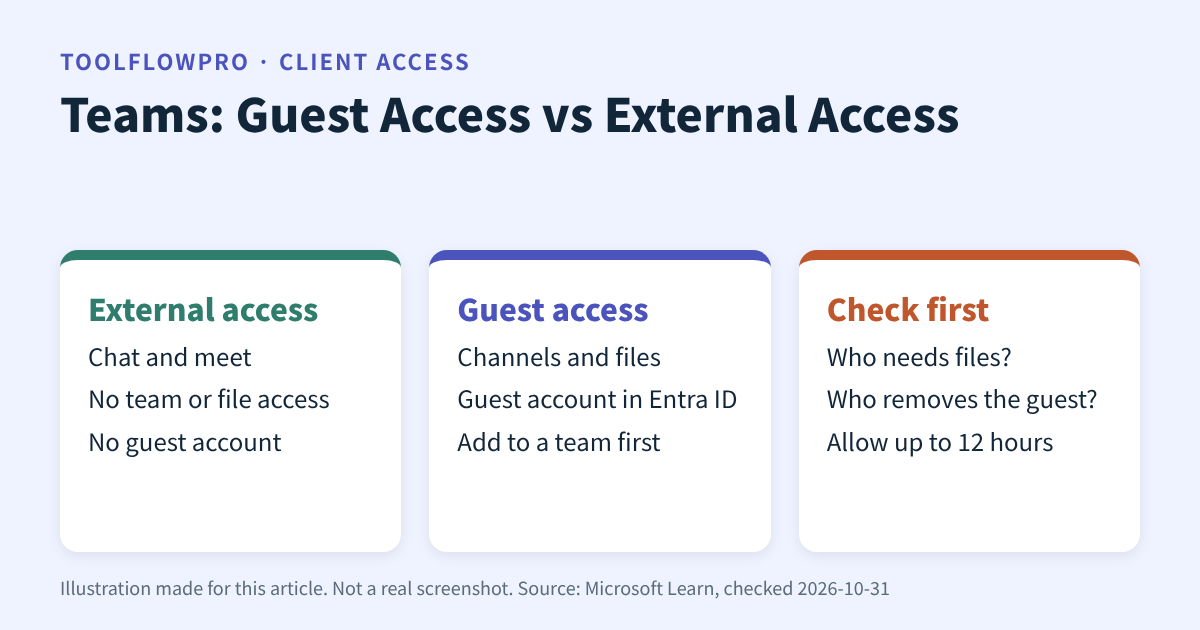
Short answer: use external access when you only need to chat or meet with someone in another Microsoft 365 organization. Use guest access when that person must see a team, its channels, or its files.
This comparison is based on Microsoft Learn pages checked on 2026-10-31. We did not test it in our own Teams tenant, so treat it as a document-based guide.
Which one fits your client project?
Pick external access if the client already uses Microsoft 365 and you just need calls, chats, and meetings. Pick guest access if the client needs shared files or a channel. Both choices depend on your admin settings, so ask your admin first.
Not a good fit: external access cannot give a client access to your team files. Guest access is more than you need if one meeting is the only goal.
Side-by-side comparison
| What you need | External access | Guest access |
|---|---|---|
| Chat and calls with another Microsoft 365 organization | Yes | Yes, after the person is added to a team |
| Meetings | Yes, with other Microsoft 365 organizations | Yes |
| Access to your teams, channels, and files | No | Yes, after the invitation is accepted |
| Guest account in Microsoft Entra ID | No | Yes |
| Extra Microsoft 365 license for the guest | Not stated on the page we read | Not required, per Microsoft |
| Wait time after setup | Not stated | Up to 12 hours after the guest is added to a team |
Details that surprise small teams
People with a personal Microsoft account can only chat through external access. Skype users can chat and call, but meetings are not supported for them. If a Skype user joins a meeting, they count as anonymous.
Every guest must belong to at least one team before guest features work. Guests who use a work or school account sign in directly. Other guests receive a one-time passcode.
If you add a guest straight to the Microsoft 365 group, no invitation email is sent. In that case, tell the guest yourself.
Checklist before you invite a client
- Write down what the client must see: only meetings, or also files.
- If only meetings, check that external access is allowed for the client’s domain.
- If files are needed, ask your admin to confirm that guest access is turned on.
- Create or choose one team for the client. Do not add them to an internal team.
- Invite the guest and allow up to 12 hours before you test.
- Set an end date. Add a calendar reminder to remove the guest.
Removing access at the end
A guest can leave a team at any time. That does not delete the guest account. A Microsoft Entra admin must remove the account. Microsoft also suggests access reviews to check guests regularly.
For a similar offboarding routine in another tool, see our Slack offboarding checklist. If your clients prefer Notion, read the Notion guest access checklist.
Your next step
Write one sentence: “The client needs to ___.” If the blank says chat or meet, choose external access. If it says view files, choose guest access and ask your admin to set it up.
Sources
- Microsoft Learn: Guest access in Teams (checked 2026-10-31; page footer date 2026-07-16)
- Microsoft Learn: External access in Teams (checked 2026-10-31; page date 2025-11-19)
No affiliate link is used in this article. Features and limits can change, so check the Microsoft pages before you decide.