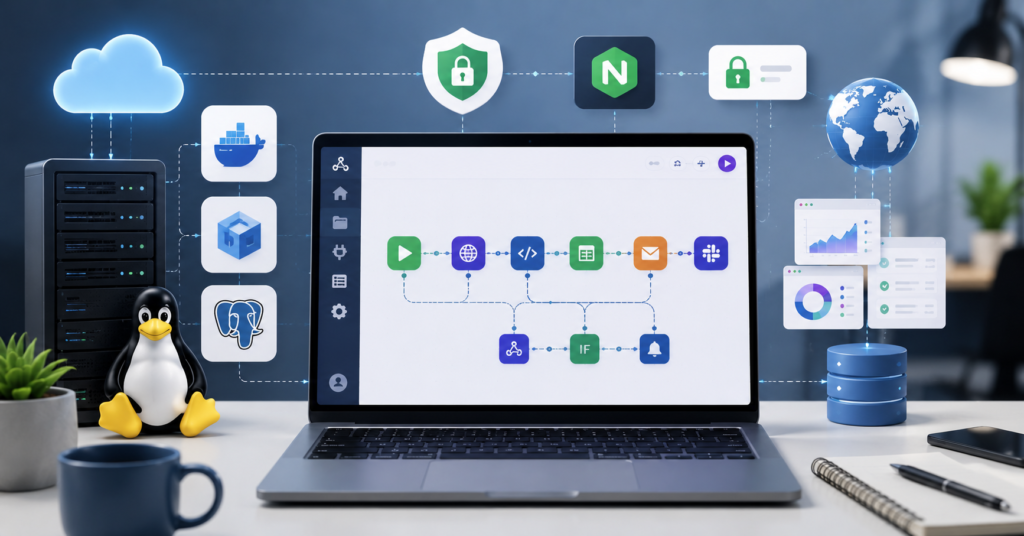
If you’re trying to figure out how to self host n8n on VPS, you’re probably at the point where Zapier or Make.com pricing stopped making sense for your workflow volume. Self-hosting n8n on a cheap VPS can genuinely solve that — but most tutorials get you through installation and then leave you stranded when something breaks at 2am.
This guide covers the parts that actually matter for running a stable setup in 2026: real costs, Docker Compose configuration, database choice, backups you can actually restore from, and security basics that don’t require a sysadmin background.
Why Does Self-Hosting n8n Feel Difficult?
Self-hosting stacks several technologies together at once — Linux, Docker, networking, SSL, and databases — and most tutorials assume you already know at least one of them. The honest answer is that you don’t need to know all of it upfront. You just need a working starting point and a maintenance habit you can actually stick to.
Docker and Linux Setup Can Feel Overwhelming
The terminal is usually the first wall. If you’ve never SSH’d into a server before, Docker Compose files can look intimidating before they start making sense.
What helped me most early on: Docker isn’t there to make things complicated. It keeps n8n isolated from the rest of the server so you can restart, update, or rebuild the container without touching anything else. Once that clicks, the whole setup becomes easier to reason about.
The practical starting stack for beginners:
- Ubuntu 22.04 LTS
- Docker and Docker Compose installed
- One n8n container
- Postgres database
- Reverse proxy with SSL
Get this working first. Optimize later. Trying to add monitoring, alerting, and custom configurations before the basics are stable is how most beginners end up stuck.
Domains and SSL Configuration Cause Most Problems
The installation usually goes fine. It’s the domain connection and HTTPS setup where things fall apart, often for one of these reasons:
- DNS records pointing to the wrong IP
- Firewall blocking ports 80 or 443
- Reverse proxy misconfiguration
- SSL certificate not renewing automatically
- Docker network conflicts
Nginx Proxy Manager or Traefik both handle Let’s Encrypt SSL automatically and are much friendlier for beginners than configuring raw Nginx by hand. Don’t run n8n over plain HTTP beyond local testing — session tokens, API keys, and webhook endpoints all need HTTPS before anything goes into production.
n8n Self-Hosting Cost Comparison: VPS vs Cloud
How much does running your own n8n server actually cost? For most users, a reliable VPS runs between $4 and $12 a month — significantly less than a comparable SaaS automation subscription once your workflow count grows.
Best VPS Providers for Beginners
You don’t need much hardware to start. Basic n8n workflows run fine on modest specs, and you can always upgrade later without rebuilding from scratch.
| Provider | Entry Plan Price | RAM | Storage | n8n Fit Score |
|---|---|---|---|---|
| DigitalOcean | $6/month | 1GB | 25GB SSD | 9/10 |
| Hetzner | €4–5/month | 2GB | 40GB SSD | 10/10 |
| Vultr | $6/month | 1GB | 25GB SSD | 8/10 |
This is the VPS I personally started with — here’s why: DigitalOcean. The interface is clean, deployment is fast, and the documentation is actually useful when something breaks. Hetzner gives you more hardware for the price, but DigitalOcean’s onboarding is more forgiving if you’re new to server management.
How to Optimize Monthly VPS Costs
The most common way to overspend is scaling the server before you actually need to. Most beginner n8n setups run comfortably on:
- 1–2 GB RAM
- 1 CPU core
- 25–40GB SSD
You’ll want more resources only when you’re running heavy AI model workflows, processing large file uploads, handling many simultaneous executions, or running multiple services on the same box. Check your RAM usage every week or two before committing to an upgrade — most people upgrade months before they actually need to.
How to Install n8n on a VPS Using Docker Compose
What’s the most stable setup for a beginner running n8n in production? Ubuntu, Docker Compose, Postgres, and a reverse proxy with auto SSL. This combination is widely documented, easy to troubleshoot, and holds up well as workflow complexity grows.
Ubuntu Server and Docker Compose Setup
Start with a fresh Ubuntu 22.04 VPS and work through this order:
- Update system packages immediately after provisioning
- Install Docker via the official script
- Install Docker Compose
- Create a project directory with separate folders for n8n, database, and proxy
- Create named Docker volumes for data persistence
- Configure UFW firewall rules before exposing anything
Keep your configuration organized from the start. Separate containers for n8n, Postgres, and your reverse proxy. Use a .env file for all credentials and reference it from your Compose file — never hardcode passwords directly into compose files you might share or back up to a repository.
One thing worth doing before treating the setup as live: restart the server completely and verify that everything comes back up on its own. If your workflows disappear after a reboot, your Docker volumes aren’t configured for persistence yet.
Postgres Database and Reverse Proxy Setup
SQLite works for quick local testing but isn’t reliable for anything you depend on. Postgres handles concurrent connections, workflow execution data, and backups much more cleanly.
Reasons to use Postgres from the start:
- More stable under load
- Cleaner backup and restore process
- Better handling of execution history at volume
- Easier to migrate between servers later
For the reverse proxy, Nginx Proxy Manager is the path of least resistance for beginners — it has a browser-based UI for managing SSL certificates and domain routing without hand-editing config files. Traefik is more powerful but adds complexity early on. Standard Nginx works well if you’re already comfortable with config files.
Set up HTTPS before doing anything else in production. Every credential, webhook URL, and API key that passes through n8n needs SSL in front of it.
Backup and Disaster Recovery for Stable n8n Operations
Installation tutorials get you to the starting line. Backup and recovery planning is what keeps you running after something goes wrong — and something always eventually goes wrong.
Automatic Database Backup Scheduling
Your Postgres database is the most important thing to protect. If it’s gone, your workflows, credentials, and execution history go with it. The container itself is replaceable; the data isn’t.
At minimum, automate:
- Daily Postgres dumps to a compressed file
- Docker volume backups
- Offsite copy to object storage or a second server
- Weekly VPS snapshots through your provider
- Monthly restore tests on a temporary server
That last one matters more than most people realize. A backup you’ve never tested restoring from is just a false sense of security. Schedule a test recovery every month until it becomes routine.
Disaster Recovery Flow When the Server Goes Down
When something breaks in production, the instinct is to start changing things fast. That’s usually how you make it worse. Follow a fixed diagnostic sequence instead:
- Check your VPS provider’s status page first — the issue might not be yours
- Ping the server IP to confirm basic connectivity
- SSH in and check Docker container status
- Restart containers if they’ve stopped unexpectedly
- Check reverse proxy logs for connection errors
- Verify database connectivity from the n8n container
- Restore from the latest backup if data looks corrupted
- Test a few critical workflows manually
- Confirm webhook endpoints are responding
- Watch CPU and RAM for 15–20 minutes after recovery
Keep an emergency reference doc somewhere separate from the server itself — SSH credentials, backup locations, domain registrar login, DNS provider access, and the commands you’ll need under pressure.
Before you go further, this is the fastest way to get started: Get $200 free credit on DigitalOcean.
Download my free n8n Self-Hosting Checklist — setup, security, backup, and update steps in one printable sheet. Enter your email below to get it.
n8n Security and Maintenance Checklist
How do you keep a self-hosted n8n server secure without it becoming a full-time job? Security on a VPS is less about complex configurations and more about not leaving obvious doors open — which most attackers are counting on.
API Key Protection and Server Hardening
Work through this list before your setup goes anywhere near production workflows:
- Disable password-based SSH login
- Use SSH key authentication only
- Change the default SSH port
- Enable UFW and block all ports you’re not actively using
- Use long, randomly generated passwords in your .env file
- Rotate API keys on a regular schedule
- Restrict database access to the Docker internal network only
- Install fail2ban to block brute-force attempts
- Keep production and test workflows in separate environments
- Never commit .env files to version control
One thing that catches people off guard: webhook URLs are sensitive. If someone gets your webhook URL, they can trigger your workflows externally. Treat them with the same care as API keys.
Safe n8n Update Practices
Updating n8n without preparation is one of the more reliable ways to break a working setup. The process isn’t complicated, but skipping steps creates problems.
Before every update:
- Create a fresh database backup
- Export your workflows through the n8n UI
- Read the release notes for breaking changes
- Check database compatibility notes if you’re jumping multiple versions
- Run the update during your lowest-traffic window
After updating, verify:
- Critical workflows trigger correctly
- Webhook endpoints respond as expected
- Logs show no new errors
- SSL certificates are still valid
- RAM and CPU usage are stable
Most update problems come from skipping the pre-update backup and then having nowhere to roll back to.
FAQ: Common Questions About Self-Hosting n8n
How Do I Self Host n8n?
The most reliable beginner path uses Ubuntu, Docker Compose, Postgres for the database, and Nginx Proxy Manager for SSL and domain routing. This setup is well-documented, easy to maintain, and stable enough for production workflows.
Is Self-Hosted n8n Free?
The n8n software itself is free to self-host, but you’re still paying for VPS infrastructure, domain registration, and any backup storage you use. Most setups land between $5 and $12 a month total, depending on your provider and spec choices.
Can I Run n8n on My Own Server?
Yes — VPS, home lab, local machine, or cloud infrastructure all work. The main limitation with local hosting is uptime and remote access: webhooks from external services can’t reach a server that’s behind a home router without extra configuration.
What Skills Do I Need for Self-Hosting?
Basic Linux terminal comfort, enough Docker knowledge to read a Compose file, and willingness to follow error messages. You don’t need development experience to start — most problems have documented solutions and the n8n community is reasonably active.
What Is the Best Local Setup Without Cloud Costs?
A mini PC or repurposed laptop running Docker locally works for personal automation. The tradeoff is that incoming webhooks from external services require port forwarding or a tunneling tool like Cloudflare Tunnel, and uptime depends on your hardware staying on.
Final Verdict
Getting comfortable with how to self host n8n on VPS takes a weekend to set up properly, but the payoff is a flexible automation system that doesn’t bill you per task. The real work isn’t installation — it’s building the maintenance habits around backups, updates, and security that keep things running six months later.
Start small. Get the basics stable before adding complexity. Test your backups before you need them. And secure the server before you connect anything important to it.
Want weekly self-hosting and automation tips? Join 1,500+ readers and get practical VPS guides, Docker workflows, and n8n tutorials every week.